Officeless Studio Extension

Checking your Teknopus session…

Officeless Studio Extension logo
Mekari · Officeless Gen 2 · Install guide

Officeless Studio Extension

Chrome extension for Officeless Gen 2 only — studio.mekari.com. Execute API and webhook workflows from the editor, browse the workflow explorer side panel, search workflows, and copy workflow JSON.

Supported Officeless Gen 2 Not for Gen 1 / Visual Programming Target studio.mekari.com Version …
Download extension (.zip) Overview ↓ Install steps ↓ Loading build info…
Officeless Gen 2 only. This extension matches https://studio.mekari.com/*. It does not run on Officeless Gen 1, Visual Programming, or other Studio hosts (for example custom UAT / SMART CIMB visual-programming URLs).
1. Overview 2. Install 3. Usage 4. Updates 5. Troubleshooting

1. Overview

After you load the unpacked ZIP in Chrome, open a Gen 2 workflow on studio.mekari.com. The extension adds an Execute control in the editor and a Workflow Explorer side panel.
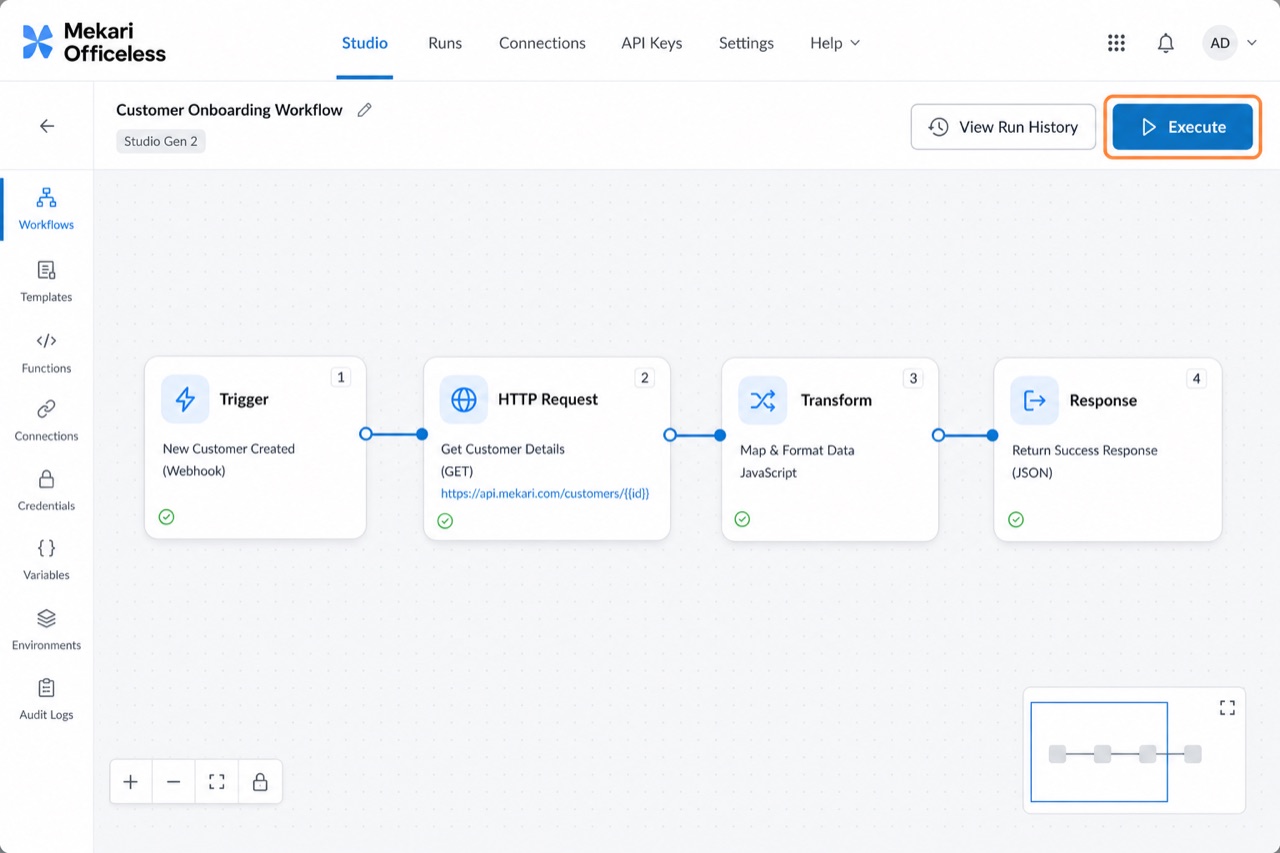
Officeless Gen 2 workflow editor with the Execute button next to View Run History
Execute from the editor On Gen 2 workflows, click Execute next to View Run History.
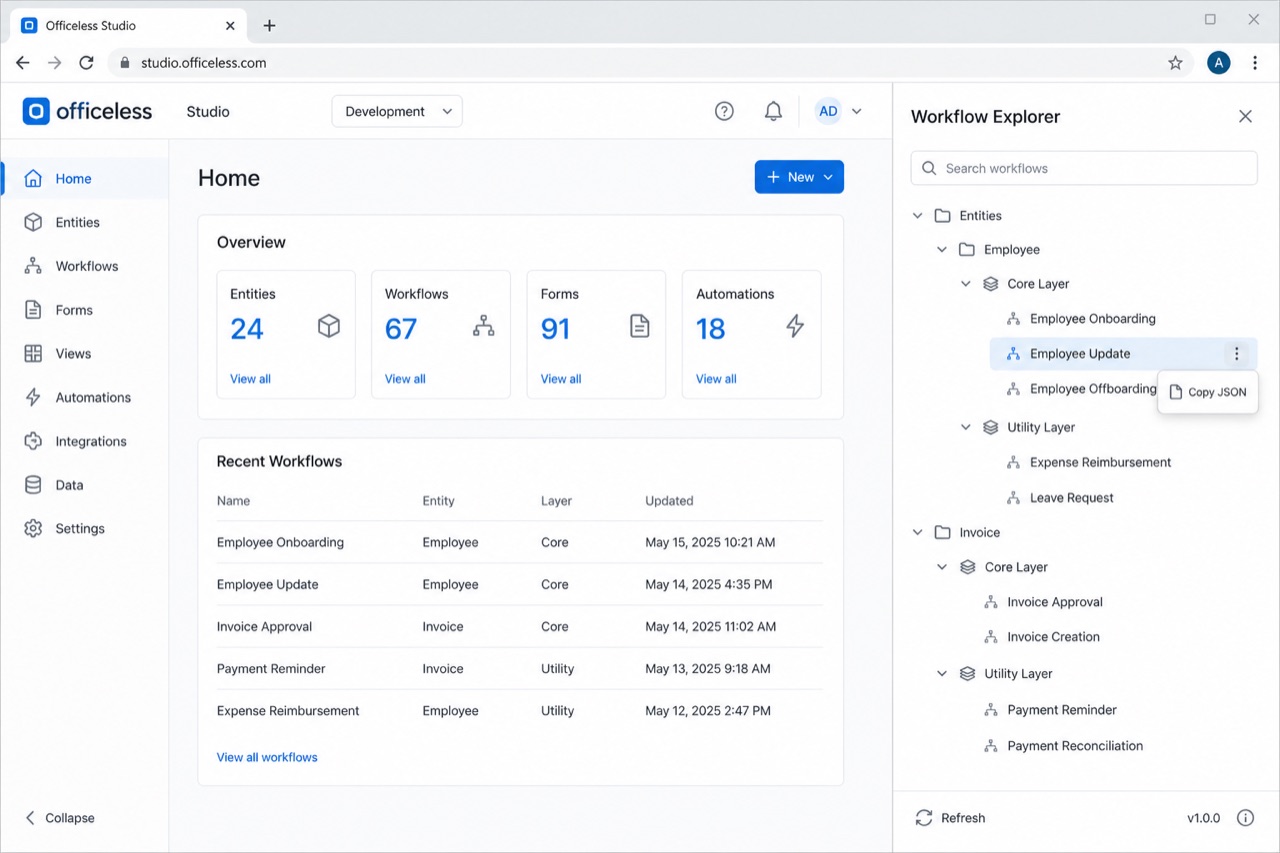
Workflow Explorer side panel showing Entity, Layer, and Workflow tree
Workflow Explorer Browse Entity → Layer → Workflow, search by name, and copy JSON.
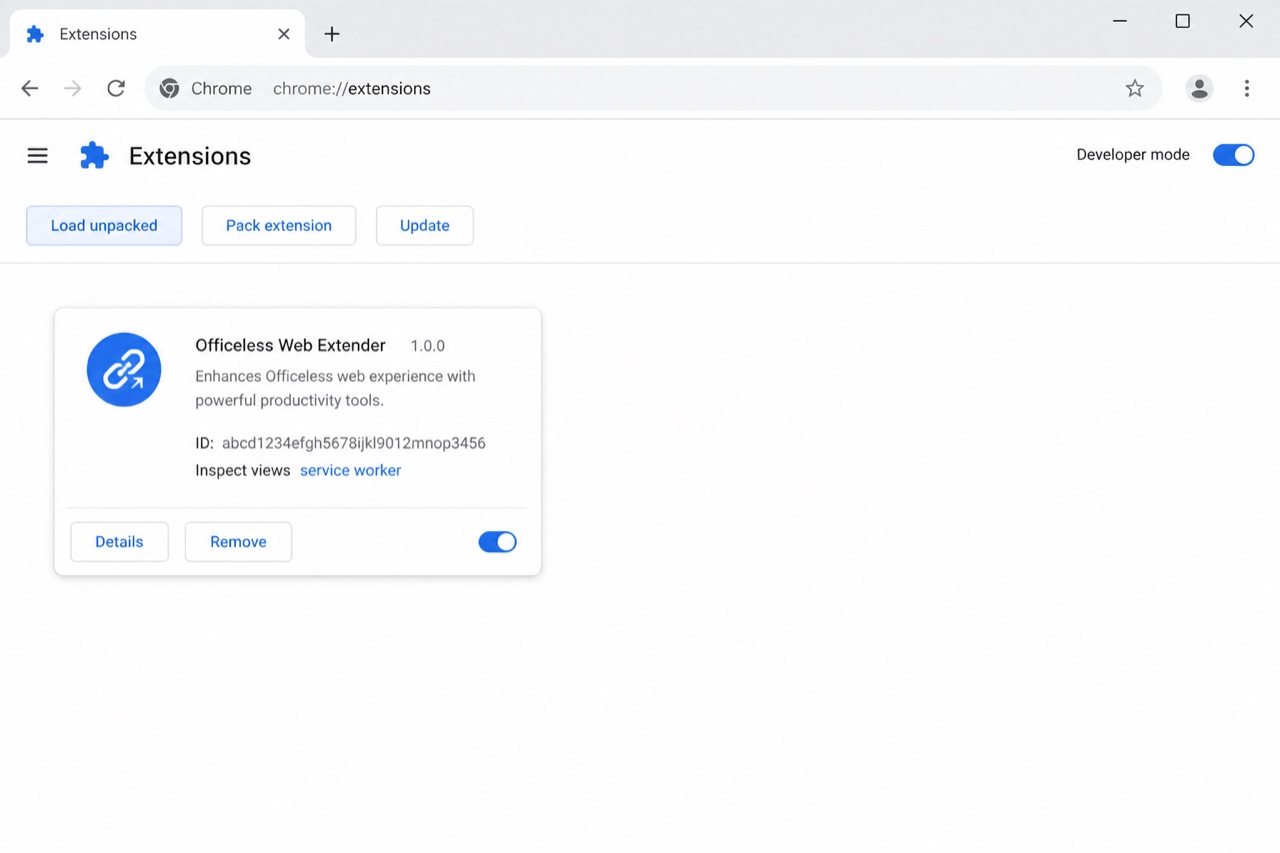
Chrome extensions page with Officeless Studio Extension loaded unpacked
Load unpacked in Chrome Enable Developer mode, then load the unzipped folder that contains manifest.json.

2. Download & install

Chrome cannot install a ZIP directly. Unzip it, then load the folder as an unpacked extension. Current release: ….

  1. Download the ZIP
    File name: officeless-studio-extension.zip
  2. Unzip the archive
    You should get a folder named officeless-studio-extension that contains manifest.json, background.js, dist/, etc.
    unzip officeless-studio-extension.zip
    # → officeless-studio-extension/
  3. Open Chrome extensions
    Go to chrome://extensions in the address bar.
  4. Enable Developer mode
    Toggle Developer mode in the top-right corner.
  5. Load unpacked
    Click Load unpacked and select the unzipped officeless-studio-extension folder (the one that contains manifest.json).
  6. Confirm it appears
    You should see Officeless Studio Extension in the extensions list. Pin it from the puzzle-piece menu for quick access.

3. Usage (Gen 2)

Execute a workflow

Open a workflow on studio.mekari.com. Click Execute next to “View Run History”. The button shows “Executing…” while the request runs.

Workflow explorer

Open the side panel from the extension icon. Browse Entity → Layer → Workflow, search by name, and copy workflow JSON from the three-dot menu.

Network capture needs a Gen 2 Studio session. If Execute fails with auth errors, refresh studio.mekari.com and try again.
If you are on Gen 1 / Visual Programming (or a host other than studio.mekari.com), the Execute button and explorer will not appear — that is expected.

4. Updates

After downloading a new ZIP, return to chrome://extensions and click the reload icon on the extension card (or Remove + Load unpacked again).

Enterprise self-host updates (CRX + update.xml) are available at /extensions/update.xml when a signed build is published.

5. Troubleshooting

  • Wrong product / host — this extension is Officeless Gen 2 only (https://studio.mekari.com/*). Gen 1 Visual Programming and other Studio URLs are not supported.
  • Execute button missing — confirm you are on Gen 2 studio.mekari.com, wait for the page to finish loading; the extension injects next to view-run-history-btn.
  • Side panel empty — open any Gen 2 project/workflow so list APIs are intercepted, then reopen the panel.
  • After a new ZIP — reload the extension on chrome://extensions so Chrome picks up the latest files.
Hosted at extension-officeless-studio-sd.mekari.com · latest.json